
Install on Ubuntu
This guide covers a fresh installation of Fast-Https v1.6.0 on Ubuntu 24.04.4 LTS (amd64). You need an account with sudo privileges.
1 Download the server package
Check the system architecture.
dpkg --print-architecture
Choose the server .deb package for the reported architecture. Packages starting with fast-https-desktop install the desktop interface.
| System architecture | Server package | Download |
|---|---|---|
amd64 | fast-https_1.6.0_linux_amd64.deb | Gitee / GitHub |
arm64 | fast-https_1.6.0_linux_arm64.deb | Gitee / GitHub |
2 Install and confirm the version
In a terminal, go to the directory containing the downloaded package and run the installation. On an arm64 system, use the arm64 filename from the table.
sudo apt install ./fast-https_1.6.0_linux_amd64.deb
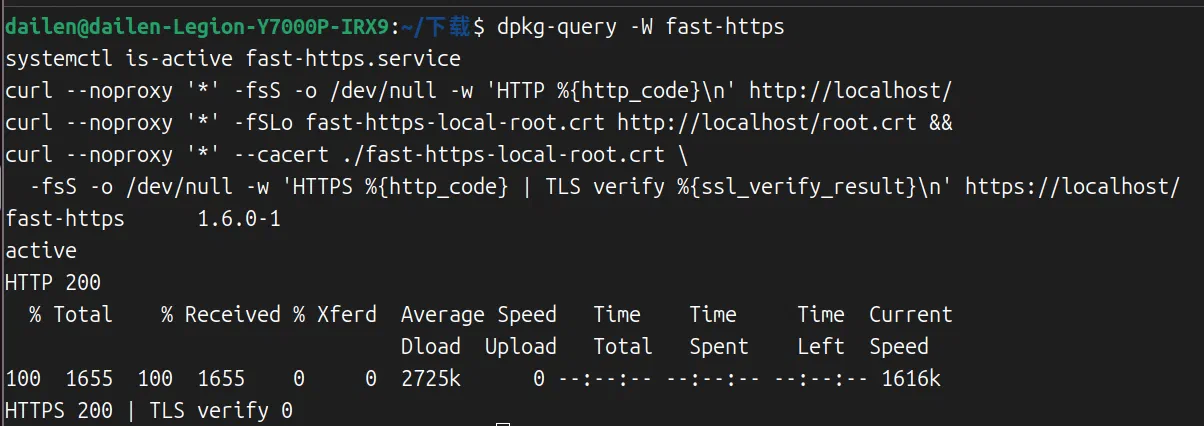
dpkg-query -W fast-https
The version query should report fast-https and package version 1.6.0-1.
| Purpose | Installation path |
|---|---|
| Command | /usr/bin/fast-https |
| Main configuration | /etc/fast-https/fast-https.json |
| Default site configuration | /etc/fast-https/conf.d/default.json |
| Default site directory | /usr/share/fast-https/httpdoc/root/ |
| Certificates | /etc/fast-https/cert/ |
| Logs | /var/log/fast-https/ |
3 Start the service
The default site uses ports 80 (HTTP) and 443 (HTTPS). Check for listeners on these ports before starting the service.
ss -ltn '( sport = :80 or sport = :443 )'
If the output contains only the header, use the default configuration. If a port is in use, edit /etc/fast-https/conf.d/default.json and set listen to available ports, for example [18080, "18443 ssl h2"]. In that case, verify using http://localhost:18080/ and https://localhost:18443/.
The package provides a systemd service. Start it and check that its status is active.
sudo systemctl start fast-https.service
systemctl is-active fast-https.service
4 Verify the default site
Request the local homepage over HTTP. The result should be HTTP 200.
curl --noproxy '*' -fsS -o /dev/null -w 'HTTP %{http_code}\n' http://localhost/
On the first start, Fast-Https generates a certificate for localhost signed by a local CA. Download the CA certificate and use curl --cacert to verify the HTTPS connection for this request.
curl --noproxy '*' -fSLo fast-https-local-root.crt http://localhost/root.crt &&
curl --noproxy '*' --cacert ./fast-https-local-root.crt \
  -fsS -o /dev/null -w 'HTTPS %{http_code} | TLS verify %{ssl_verify_result}\n' https://localhost/
HTTPS 200 | TLS verify 0 means the homepage responded successfully and certificate verification passed.
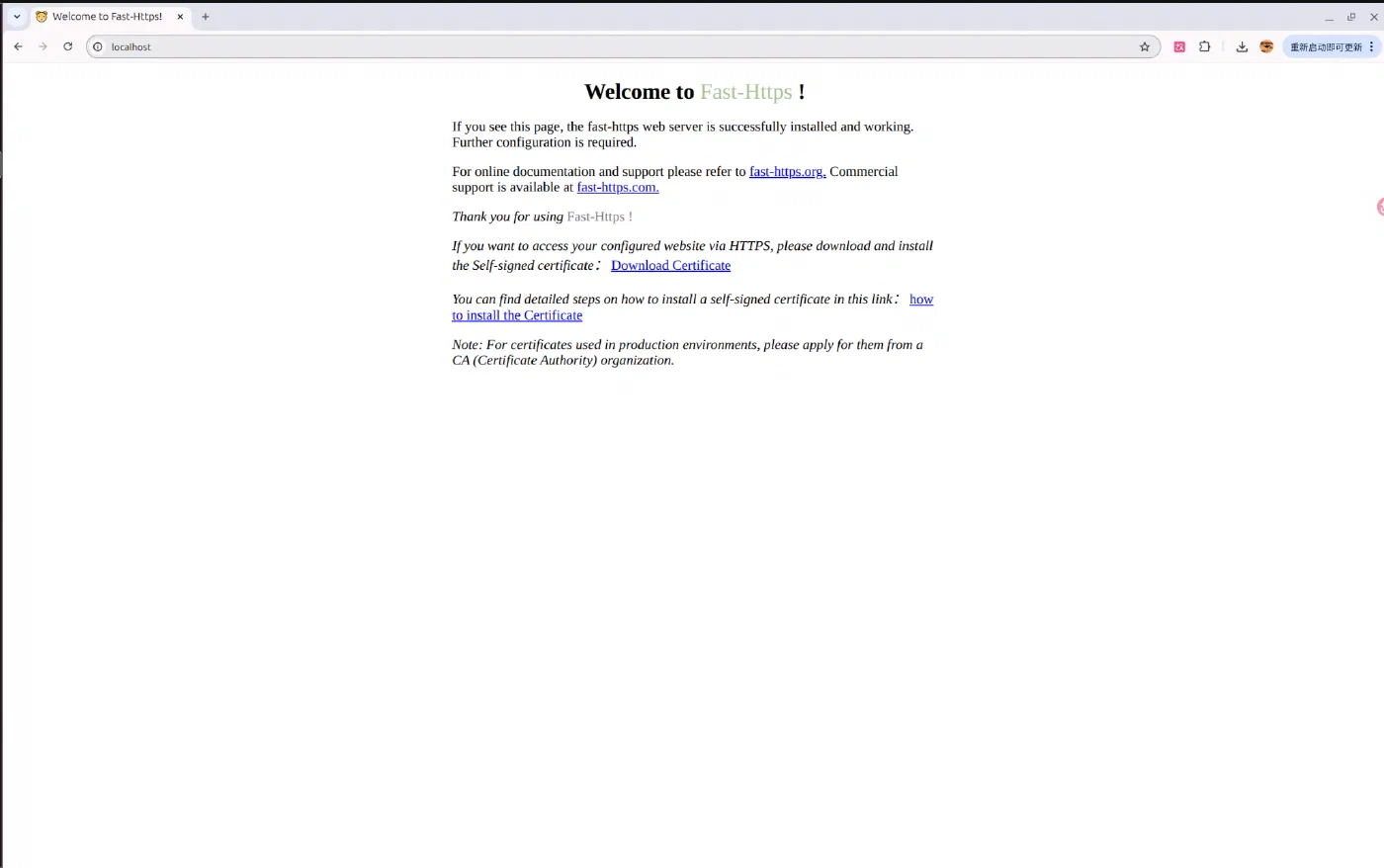
Open http://localhost/ in a browser to view the default Fast-Https homepage.
5 Manage the service
For a local test, stop the service after verification.
sudo systemctl stop fast-https.service
See Run as a service for starting on boot, restarting and checking logs.
To remove the package while keeping configuration, certificates and logs, run the following command.
sudo apt remove fast-https
For remote deployment, set server_name to the hostname or IP address clients will use and allow the required ports in the firewall and cloud security group as applicable. For HTTPS, configure a certificate that matches that address.